
Creating a MaxDiff

Introduction

MaxDiff (Best-Worst Scaling) estimates preference or importance scores for a set of items, such as brands, product features, or claims. Rather than asking respondents to rank a large list, MaxDiff breaks it into smaller tasks. In each task, respondents choose the best and worst items from a subset of typically 4 to 6 items. This makes the process more manageable and produces more accurate, reliable results.

MaxDiff outperforms traditional rating scales by offering clearer distinctions between preferences. Since respondents choose only the best and worst options without relying on a response scale, it eliminates common biases seen in cross-cultural research.
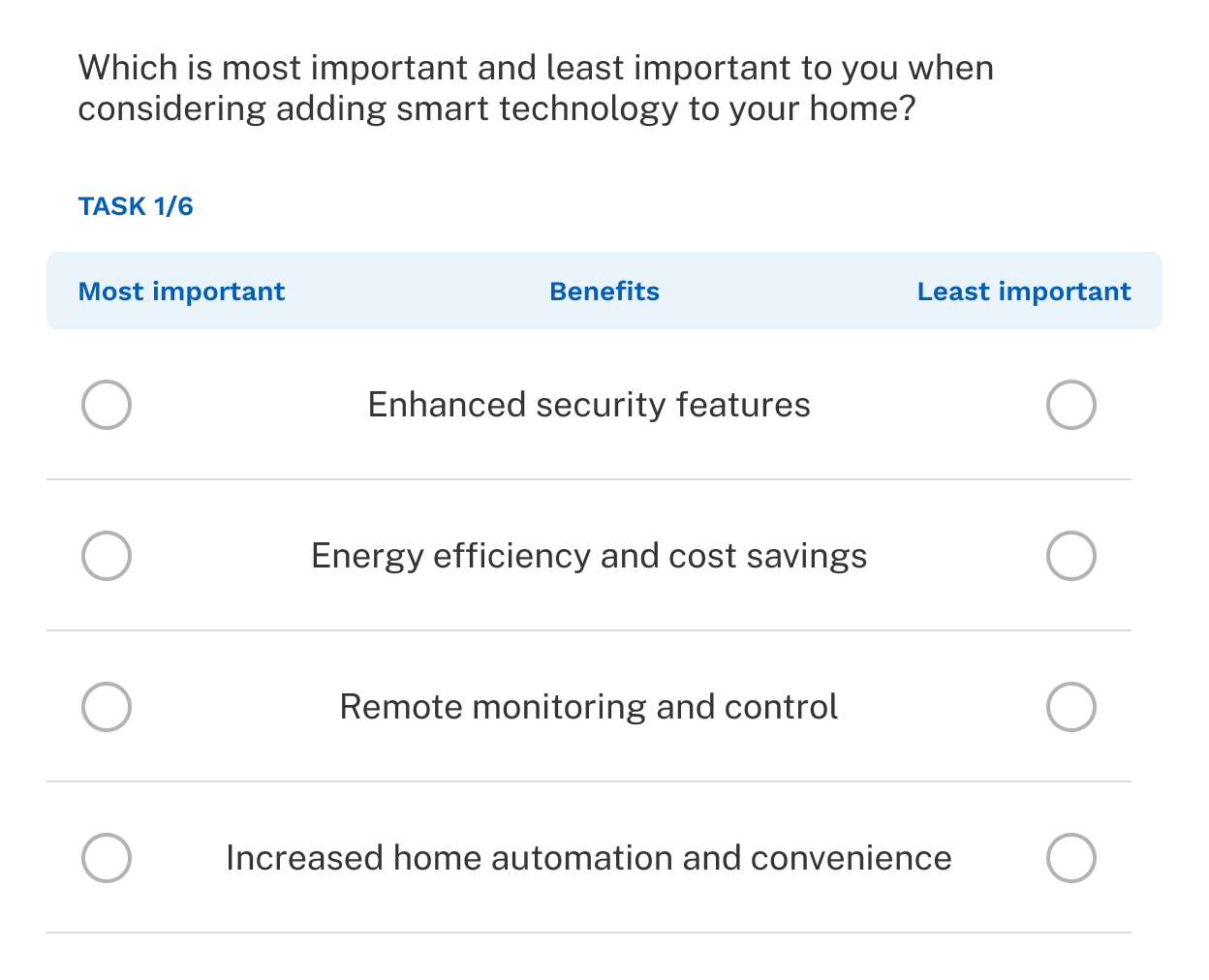
MaxDiff Example

Specifying response options

Enter options individually or paste them from Excel or Word. To tailor the list shown to each respondent, apply a Dynamic list. This lets you build logic that controls which items appear — for example, showing only the brands a respondent has purchased before. Once a dynamic list is applied, change the MaxDiff type to Relevant items in the Advanced tab. This is necessary because the type determines how the exercise design is configured, and the design settings for Relevant items account for the fact that not all respondents will see the same items.

If a dynamic list containing an exclusive item is applied to a Relevant items MaxDiff, that item is automatically excluded from analysis. Since it never appears in a respondent's design, including it would distort the utility calculation.

Labels

Three labels are available in the settings panel:

  1. Best and worst labels: Label the scale respondents use to choose items.
  2. Items label: Provides context for the items — for example, "Cookies" above a list of cookie flavors.
  3. Show task counter & Task label: A counter showing the respondent's progress through the exercise. The counter can be disabled and the label is optional.
The MaxDiff labels described above are highlighted.

Advanced settings

The Advanced tab contains additional settings for refining the exercise beyond the basic configuration.

MaxDiff type

Traditional

Uses a standard list to display all items to every respondent.

Relevant items

Uses a dynamic list to display only items relevant to each respondent. For example, show respondents only the brands they have purchased before.

Express

For surveys with a large number of items, Express MaxDiff selects a randomized subset for each respondent, then builds an efficient, balanced design with each item appearing approximately 3 times. To set up an Express MaxDiff, create a dynamic list that reduces the total number of items and set the type to Relevant items.


Sparse

Also suited for large item sets, Sparse MaxDiff includes all items in the design but limits how often each appears, typically around once per respondent. Adjust the Number of items per task and Number of MaxDiff tasks to reduce how frequently each item is shown.

For a comparison of Express and Sparse, see the white paper A Parameter Recovery Experiment for Two Methods of MaxDiff with Many Items.

Exercise design

Discover's design recommender generates a default design that meets the criteria for an effective MaxDiff exercise with high individual-level precision. To review or modify the design, see the Design settings article.

MaxDiff design settings can be configured on the second tab of the exercise settings.

Anchoring

Anchoring establishes a reference point that lets researchers assess whether respondents perceive items as important or not in a more absolute context, rather than purely relative to each other. See the Anchoring article for more.

Anchored Question

Related Content

VIDEO

This 10 minute video provides an overview of MaxDiff.

TECHNICAL PAPER

Best-worst scaling gives you better information with fewer respondents—it works better than traditional rating scales.